W60B
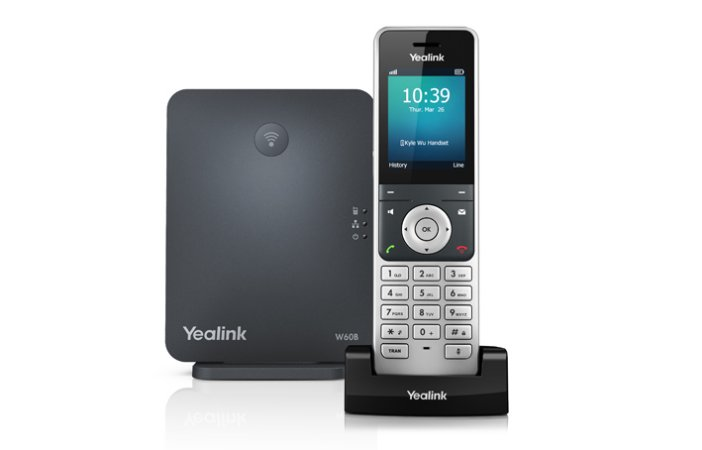
To reset your Yealink W60B base station to factory defaults, you can use any of the following three methods:
- Hardware Reset (Directly on the Base)
This is best if you have forgotten your password or cannot access the menu.
- Step 1: Disconnect the power cord (or network cable if using PoE) from the back of the base.
- Step 2: Wait about 15 seconds.
- Step 3: Press and hold the Paging/Connect button (the button with the wireless icon on the front).
- Step 4: While still holding the button, reconnect the power/network cable.
- Step 5: Continue holding until all three LED lights turn solid green, then release the button.
- Step 6: Wait roughly 5 minutes for the process to finish, then reboot the unit by unplugging it for another 15 seconds.
2. Handset Reset (Using a Connected Phone)
If your handset is already paired with the base, follow these steps:
- Step 1: Press OK to open the main menu.
- Step 2: Navigate to Settings > System Settings.
- Step 3: Select Base Reset.
- Step 4: Enter the system PIN (default is 0000).
- Step 5: Select Reset to Factory and confirm with OK.
3. Web Interface Reset (Remote Reset)
Use this if you know the base station's IP address:
- Step 1: Find the IP address on your handset by going to OK > Status > Base.
- Step 2: Enter the IP into your web browser and log in (default username: admin / password: admin).
- Step 3: Go to the Settings tab, select Upgrade on the left, and click Reset to Factory Settings.
Note: A factory reset will unpair all handsets and wipe your contact list.
https://www.youtube.com/watch?v=Y7EEJzmzfBU